OpenClaw Docker on Mac Cloud in 2026: Exit 137/OOM, uid 1000 Volume Permissions, DNS, and the Shortest openclaw doctor Path
Operators running OpenClaw in Docker on Mac cloud nodes often hit exit 137, Permission denied on mounted config, or HTTPS that works on the host but fails inside the container—then burn days reinstalling images. This article states who should read it (SREs and solo devs on rented Macs), what you get (an ordered checklist and symptom matrix aligned with 2026 official Compose practice), and how it is structured (memory and cgroups first, uid 1000 volumes second, Docker DNS third, then openclaw doctor, port 18789, and when to abandon containers for native macOS).
In this article
1. Readiness triad: process up, port mapped, volume writable
Official Docker and Docker Compose flows wrap the OpenClaw gateway in a container. The Mac cloud host still owns RAM and CPU quotas, bind-mounts ~/.openclaw (or a custom config directory), and publishes 18789 or another mapped port for loopback checks or SSH tunnels. Unlike a laptop on your desk, cloud Macs ship with capped memory, often no GUI session, and images that commonly run as the non-root node user with uid/gid 1000. Until those facts are internalized, every config tweak happens at the wrong layer.
Define readiness as three observables you can paste into a ticket: the container is running or healthy, docker compose ps shows the expected ports mapping, and commands such as openclaw status or your health probe succeed inside the container without permission errors. Model routing, Slack webhooks, and Cron belong only after the triad is green. Common Compose mistakes include host paths that do not exist (so Docker creates root-owned directories), read-only mounts where the gateway must persist state, or exhausting a small root volume with image layers and build cache—symptoms that mimic random crashes until df -h tells the truth.
Record compose project name, service names, published ports, and absolute host paths for config and workspace. That single line in your runbook saves hours when you cross-reference upgrade guides, webhook posts, or silent Cron troubleshooting: everyone sees the same topology instead of guessing which machine you meant.
2. Pain point breakdown (numbered)
- Exit 137 and OOM: Docker maps Linux cgroups memory limits onto the workload. When the kernel OOM killer fires, Docker often surfaces exit code 137 (128 + SIGKILL 9). Pulling or building images is far more RAM-hungry than steady-state gateway traffic; a node that “runs fine” for hours can die in minutes during
docker compose build. Always note whether 137 appeared in build or run phase—treatment differs. - Volume ownership vs uid 1000: If you create
~/.openclawon the host as root or your personal user, the container’snodeprocess cannot writeopenclaw.json, logs, or workspace files. The failure may appear as a silent startup loop, not a clear stack trace, and is frequently misattributed to “bad release notes.” - Docker DNS and corporate egress: Host-level
curl https://api.anthropic.comsucceeding whiledocker exec … curlfails almost always means the container lacks correct DNS servers, HTTP(S)_PROXY variables, or trust store visibility through a TLS-intercepting proxy. Rotating API keys before fixing the network path wastes time and quota. - Health-check and dependency races: Aggressive
depends_onwithout a generousstart_periodfloods logs with connection refused errors that look like application bugs. Prove the gateway listens before downstream services hammer it.
Together these four patterns explain the majority of production-style incidents we see on Mac cloud tenants; the matrix below compresses them into first actions.
3. Symptom-to-root-cause matrix
Use the table as a decision sheet during incidents. Pick the closest symptom, execute the first-action column before moving to secondary hypotheses.
| Observable signal | Likely root cause | First actions (ordered) |
|---|---|---|
Restart loop, OOMKilled, exit 137 | cgroup or host memory pressure | Raise Docker Desktop/Engine memory or compose mem_limit; stop competing RAM-heavy jobs; retry build with fewer parallel layers |
Permission denied on config or workspace paths | Bind mount owned by wrong uid | On host: sudo chown -R 1000:1000 /path/to/mount; verify RW in compose; confirm with docker exec -u node … touch test file |
| HTTPS or DNS failures only inside container | Container resolver or missing proxy env | docker exec cat /etc/resolv.conf, curl -v; add dns: in compose or daemon.json; pass --env-file for corporate proxies |
| Process up but port unreachable remotely | Port mapping, bind address, or cloud security group | Compare ports: to intended 0.0.0.0 vs 127.0.0.1; open SG rule; prefer SSH tunnel per hardening guides |
openclaw doctor reports missing credentials though compose “sets” them | Environment not injected into container process | docker exec … env | grep OPENCLAW vs compose environment; fix quoting and inheritance |
4. Six ordered remediation steps (do not reorder casually)
Order matters because later steps assume earlier ones ruled out whole classes of failure. Skipping straight to image retags destroys evidence.
- Capture state: Run
docker compose ps -a, thendocker logs <service> --tail 200. Store whether exit 137 happened during image pull, build, or steady run. - Validate memory headroom: Temporarily assign at least roughly 4–8GB to Docker for builds (tune to your provider docs). On the host, check
memory_pressureor Activity Monitor equivalents; heavy swap plus gateway workloads is a recipe for flaky SIGKILL. - Normalize volume ownership: Apply
chownto every bind path the container writes. Re-run a trivial write test as uid 1000 inside the container before touching OpenClaw again. - Prove container networking: From inside, hit your LLM provider with
curl -sIoropenssl s_clientif TLS is suspicious. If corporate MITM is present, mirror the same trust material or proxy variables you use on the host. - Run diagnostic CLI: Execute
openclaw doctor,openclaw status, andopenclaw models status(names per current CLI). Only if doctor stays red with install-level errors after the above should you reinstall or change image tags. - Acceptance on port 18789:
curl -sI http://127.0.0.1:18789(or mapped port) from the host; for remote admins, validate SSH tunnel or reverse proxy paths documented in security posts.
docker system prune -a while an incident is open—it deletes layer cache and log context, increasing mean time to repair.5. Citable technical facts (minimum three, we list seven)
- Exit 137 semantics: Treat as OOM-first in Docker; confirm with
docker inspect … OOMKilledwhen available. - uid 1000 contract: Official Node-based images expect writable mounts for uid 1000; mismatch is not a product defect.
- RAM floor anecdote: Community and docs cite roughly 2GB as a fragile minimum for image work; builds commonly need multiples of that headroom.
- Port 18789: Default gateway/UI mapping in many samples; exposing it publicly without token hardening violates production guidance from VPSMAC hardening articles.
- Environment visibility: Compose variables are not magic—only what the container PID inherits counts for doctor.
- Duplicate stacks: Two compose projects binding the same host port or sharing one config directory create intermittent “works once” behaviour; audit with
docker psand inspect mounts. - Baseline artifacts: Keep last-known-good
docker inspectJSON snippet and a green doctor transcript before upgrades to diff regressions vs drift.
6. Closing: Docker convenience vs native macOS on VPSMAC
Docker excels at reproducible demos and multi-tenant isolation, but every namespace and cgroup is another hop when midnight pages arrive. You pay with duplicated DNS configuration, volume uid gymnastics, and harder correlation between host swap pressure and container death spirals. When teams iterate images instead of fixing mounts, they accumulate “snowflake” compose files that nobody dares to touch—hardly the outcome you want for a 7×24 agent gateway.
Native installation on a bare-metal Mac cloud node—SSH in, run the official non-container path, supervise with launchd—collapses several failure domains: the same uid you see in ssh is the uid writing config, resolver settings match your shell, and openclaw doctor reads the filesystem you already trust. For OpenClaw workloads that behave like production services rather than disposable labs, that reduction in moving parts usually beats squeezing another custom image. Docker-only stacks also add ongoing troubleshooting overhead and performance variance under sustained load; dedicated physical Mac hosts damp both.
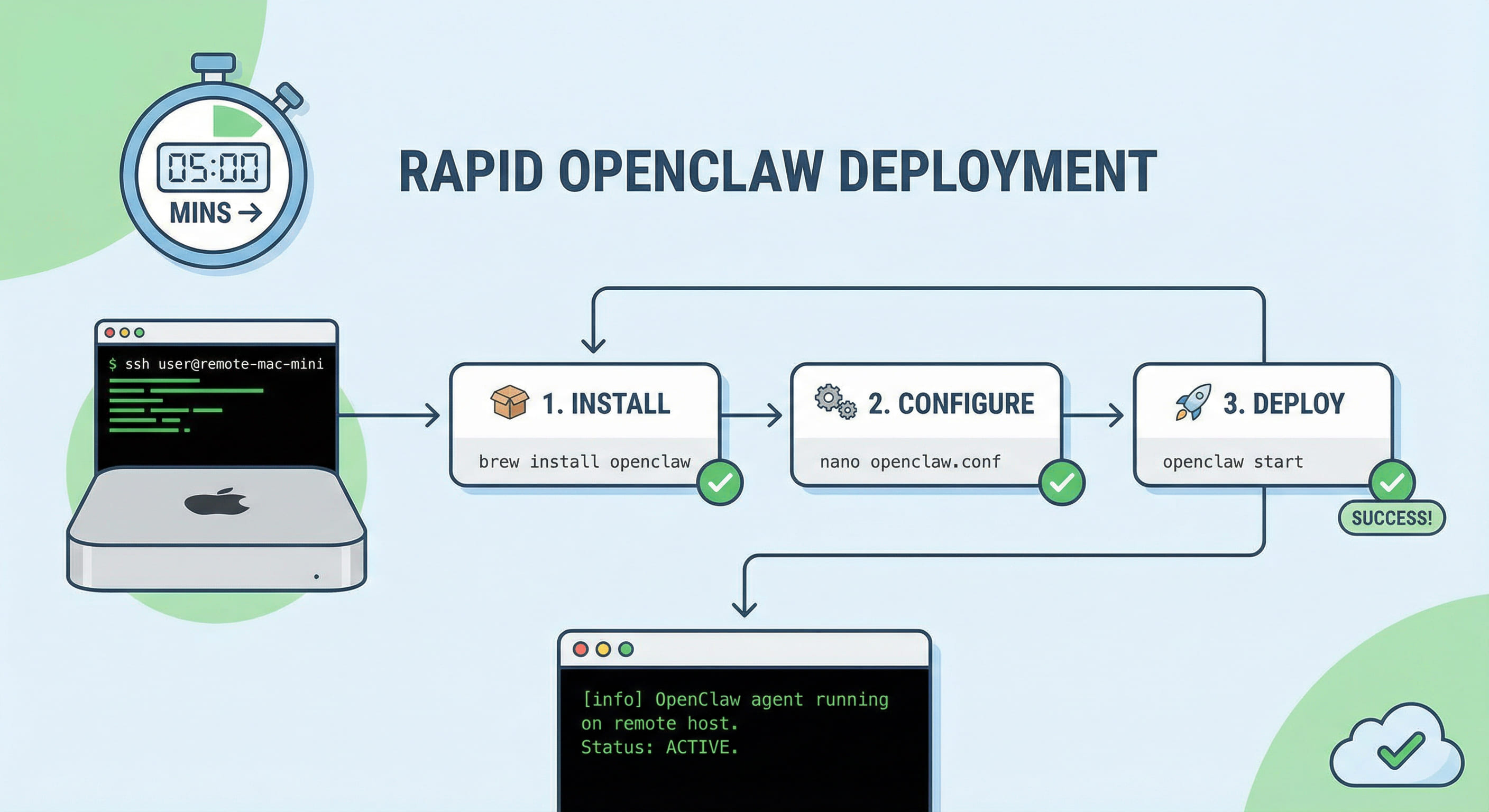
Renting a VPSMAC Mac node is therefore the pragmatic next step once the readiness triad refuses to stabilize: you keep Apple-silicon compatibility and 24/7 power without fighting container ergonomics on top of cloud quotas. Pair the node with the five-minute deploy article for bootstrap, then the production-hardening checklist for exposure—same toolchain, fewer abstraction taxes. That is the trade this article recommends after you have honestly exhausted the matrix above, not as a slogan but because the evidence from repeated 137 and permission loops points to layer count, not model quality.