2026 OpenClaw First Deploy: 5 Steps from Zero to Live (Port 18789 & Firewall Checklist)
First-time OpenClaw deployers often wonder whether to test locally or go straight to the cloud, and how to complete initial config and open port 18789. This guide explains why to validate locally first in 2026, gives the full 5-step flow from Node 22 through install, onboard, doctor, and dashboard, a port 18789 and firewall/security-group checklist (including major cloud providers), and 3 tips for 24/7 OpenClaw on a Mac cloud host.
In this article
1. Why validate locally before going to the cloud
OpenClaw in 2026 is best deployed by running it locally or on a test machine first, then moving to the cloud for 24/7. Reasons: (1) install and config (Node version, dependencies, onboard wizard) are easier to debug locally with direct log and terminal access; (2) cloud hosts usually need firewall and security-group changes, and if it does not run locally, you cannot tell app vs network issues; (3) local validation confirms model and messaging (e.g. Slack) connectivity before moving to the cloud.
- Environment drift: Local macOS/Linux/WSL and cloud OS/Node versions can differ; standardizing on Node 22+ and the official setup reduces "works locally, fails in cloud".
- Firewall and port: Cloud security groups often do not allow 18789 by default; dashboard and gateway will be unreachable until you add an inbound rule.
- Secrets: Complete onboard and sensitive config locally, then sync to the cloud securely to avoid pasting keys repeatedly in the cloud console.
2. 5 steps: Node 22, install, onboard, doctor, dashboard
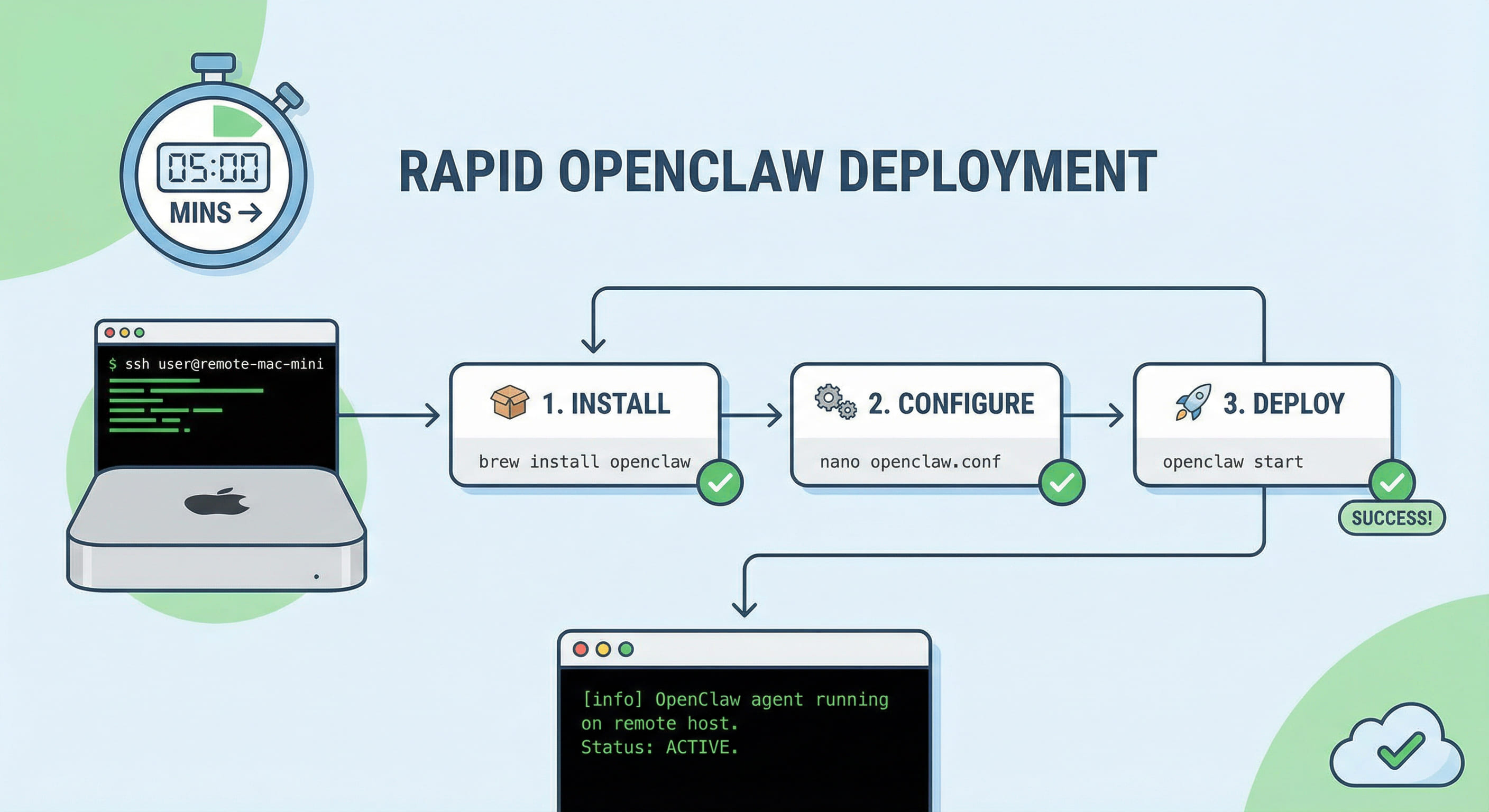
Step 1: Install Node.js 22+ (nvm install 22 && nvm use 22 or from nodejs.org). Step 2: curl -fsSL https://openclaw.ai/install.sh | bash. Step 3: openclaw onboard to choose mode, model, and messaging platform and enter API keys. Step 4: openclaw doctor to verify environment and port. Step 5: openclaw dashboard and open http://127.0.0.1:18789 (or via SSH tunnel for a cloud host).
3. Port 18789 and firewall/security-group checklist
OpenClaw gateway and dashboard use TCP 18789. On a cloud host you must allow this port in the OS firewall and the cloud security group. macOS: System Settings → Network → Firewall; Linux firewalld: sudo firewall-cmd --add-port=18789/tcp --permanent && sudo firewall-cmd --reload; ufw: sudo ufw allow 18789/tcp && sudo ufw reload. For production, do not expose 18789 to the internet; use ssh -L 18789:127.0.0.1:18789 user@host or a reverse proxy with auth.
| Environment | Check | Action |
|---|---|---|
| macOS | Firewall allow 18789 | System Settings → Firewall options or temporarily disable to test |
| Linux firewalld | Port 18789 | firewall-cmd --add-port=18789/tcp --permanent && firewall-cmd --reload |
| Linux ufw | Port 18789 | ufw allow 18789/tcp && ufw reload |
| Cloud security group | Inbound TCP 18789 | Add inbound rule for 18789, source 0.0.0.0/0 (test) or your IP |
| Production | Do not expose 18789 | Use SSH tunnel or Nginx reverse proxy with auth |
4. Cloud provider security-group tips
Alibaba Cloud ECS: Security Group → Inbound → Add rule, port 18789, source 0.0.0.0/0 or your IP. Tencent CVM: Security Group → Inbound rules → Add, custom TCP 18789. AWS EC2: Security Group → Inbound rules → Add, Custom TCP, port 18789, Source 0.0.0.0/0. Same idea for Huawei Cloud and Azure. For production, restrict source to VPN or jump host IP, or use SSH forwarding only.
5. 3 tips for 24/7 OpenClaw on Mac cloud
- Use launchd: Run OpenClaw as a service via a launchd plist so it restarts on failure; set
EnvironmentVariablesin the plist for PATH and API keys. - Logs and disk: Rotate or trim logs so disk does not fill; use
openclaw logsand system logs for monitoring. - Access: Do not expose 18789 to the internet; use SSH local forwarding or Nginx reverse proxy with auth.
6. Why Mac cloud hosts fit production
Running OpenClaw on a local PC or a generic Linux VPS works for dev and testing, but 24/7 production faces power and sleep, network instability, and lack of Apple ecosystem compatibility when you need Xcode or macOS tooling. Self-hosted Mac hardware adds cost and ops. Renting Mac cloud hosts from VPSMAC gives you always-on nodes, provider-managed power and network, and full macOS/Xcode compatibility for stable, reproducible AI Agent production. After confirming the 5-step deploy and port 18789, move OpenClaw to a Mac cloud node and use launchd for 24/7 runs.