2026 OpenClaw Multi-Platform Deployment: Linux, Windows, macOS Install & Selection Guide
Developers and ops deploying OpenClaw across different OSes often need to choose between Linux, Windows, and macOS and understand one-click scripts, Docker, and dependencies on each. This guide covers 2026 OpenClaw multi-platform support: official recommendations, install options and gotchas for all three, a comparison table of install difficulty and maintenance cost, a 5-step selection flow, and 3 best practices for long-running OpenClaw on Mac cloud nodes.
In this article
- 1. OpenClaw 2026 multi-platform overview
- 2. Linux/Ubuntu: one-click script, Docker, deps, production tips
- 3. Windows 11: Developer Mode, firewall, common pitfalls
- 4. macOS (incl. Mac cloud host): Homebrew, Node, 7×24 runs
- 5. Comparison: install difficulty, maintenance, use cases
- 6. 3 best practices for OpenClaw on vpsmac.com Mac cloud nodes
1. OpenClaw 2026 multi-platform overview
OpenClaw in 2026 officially supports Linux (Ubuntu 22.04 LTS recommended), Windows 11 (Developer Mode required), and macOS (including Apple Silicon). All need Node.js 22+ and pnpm. Install via curl -fsSL https://clawd.bot/install.sh | bash on Linux/macOS; on Windows use WSL2 or follow the docs with Developer Mode. Choose by team environment, need for 24/7 headless runs, and ops preference (SSH-first favours Linux/macOS; GUI or hybrid may use Windows + WSL).
- Isolation and permissions: Linux and macOS have clear paths and permissions for CI and scripting; Windows UAC, AV, and path spaces often cause install or startup issues—use WSL2 and install inside the WSL filesystem if you stay on Windows.
- Long-running stability: For 24/7 gateway and agents, systemd (Linux) and launchd (macOS) are mature; Windows services or Task Scheduler can break on sleep or updates without extra tuning.
- Apple ecosystem: If you need Xcode, iOS Simulator, or Apple APIs, only macOS supports them natively; running OpenClaw on a Mac cloud host lets you share that machine with other Mac tooling.
2. Linux/Ubuntu: one-click script, Docker, deps, production tips
Linux is the officially recommended production host. On Ubuntu 22.04 LTS run curl -fsSL https://clawd.bot/install.sh | bash; the script checks for Node 22+ and installs pnpm and the CLI. For containers use the community image docker pull docker.xuanyuan.run/alpine/openclaw:2026.2.22-beta.1, then start the container and expose port 18789. Production: use systemd, log rotation, and avoid running gateway as root; if on a cloud host, access the Web UI via SSH tunnel or reverse proxy—do not expose 18789 to the internet.
Technical notes: ① Node.js 22+ and pnpm are required; ② gateway default port is 18789 (configurable via env); ③ Docker image tags include date and beta version—use the full tag.
3. Windows 11: Developer Mode, firewall, common pitfalls
On Windows 11 enable Developer Mode for script execution and watch for firewall/AV blocking Node or the CLI. Common issues: paths with spaces or non-ASCII characters, WSL installs under /mnt/c (use the WSL filesystem instead for performance and permissions), and Windows updates or sleep killing the process. If your team is Windows-first, try installing OpenClaw in WSL2 to validate the flow, then consider moving to Linux or a Mac cloud host for stable 24/7 runs.
4. macOS (incl. Mac cloud host): Homebrew, Node, 7×24 runs
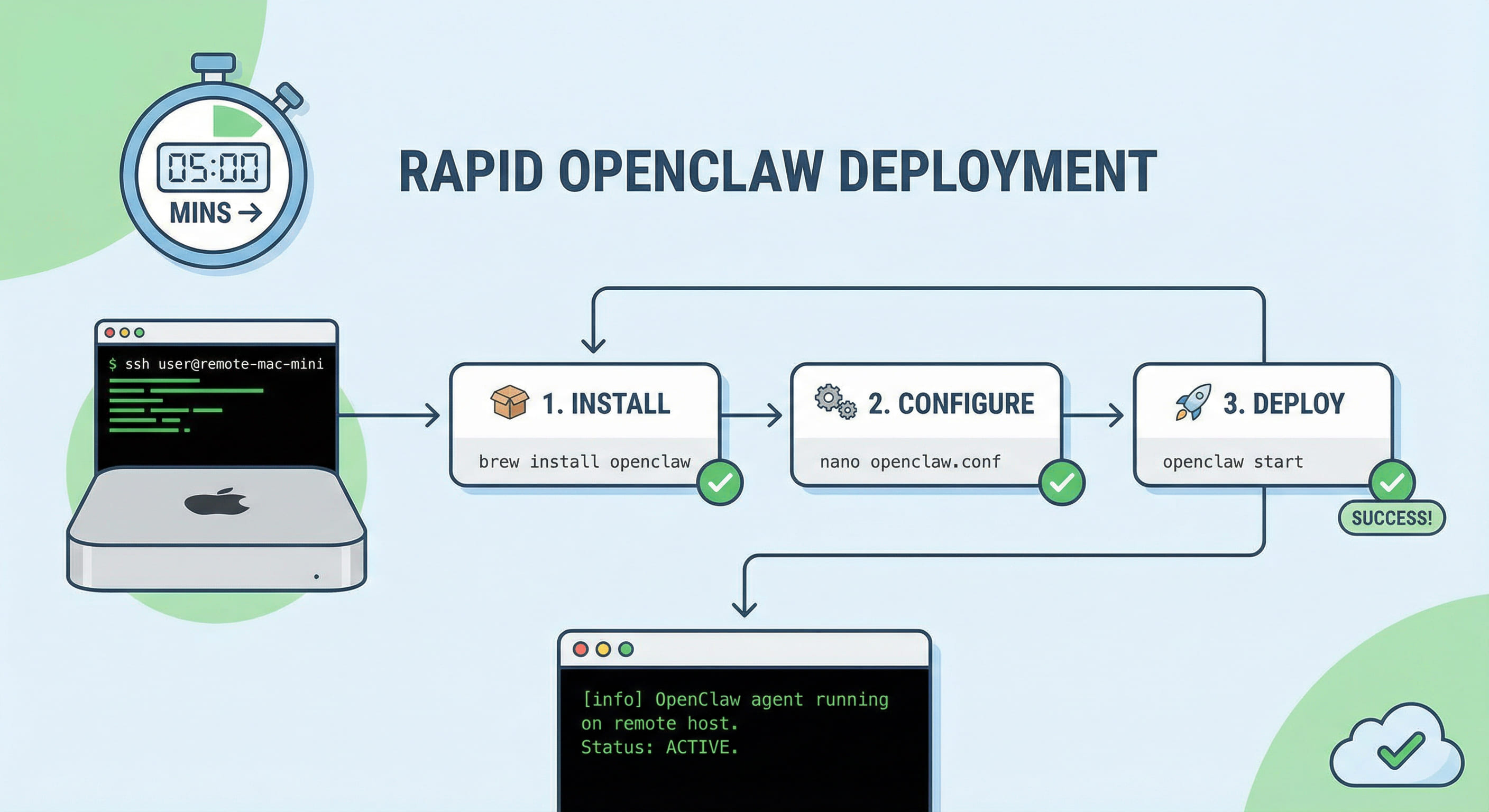
On macOS install Git and Node.js 22+ via Homebrew, then run the same one-click script. Both Apple Silicon and Intel are supported. For launchd, set EnvironmentVariables in the plist so the process gets API keys. On a Mac cloud host (e.g. vpsmac.com), SSH in and install the same way, then use ssh -L 18789:127.0.0.1:18789 user@mac-cloud-host to open the Web UI locally for 24/7 headless use without exposing the port.
5. Comparison: install difficulty, maintenance, use cases
Use the table below to choose by install difficulty, maintenance cost, and typical use.
| Platform | Install difficulty | Maintenance | Use cases |
|---|---|---|---|
| Linux/Ubuntu | Low (one-click, Docker) | Low (systemd, logs) | Production, CI, 24/7 headless, SSH ops |
| Windows 11 | Medium (Developer Mode, firewall, WSL paths) | Medium (updates, sleep) | Windows-first teams, quick validation; for 24/7 prefer WSL or move off |
| macOS | Low (Homebrew + one-click) | Low (launchd, Apple tooling) | Xcode/iOS needs, Mac cloud 24/7, unified Mac node ops |
5-step selection: ① Define primary environment and 24/7 need; ② If Linux or macOS, install per docs; ③ If Windows, install in WSL2 and validate; ④ Use the table to pick long-term platform; ⑤ In production use process supervision (systemd/launchd) and secure access (SSH tunnel or reverse proxy), and consider a dedicated Mac cloud node for isolation.
6. 3 best practices for OpenClaw on vpsmac.com Mac cloud nodes
Running OpenClaw on Windows or a mixed local setup often hits sleep, AV, resource contention, or network policy limits. Moving to a dedicated Linux server works, but if you also need Xcode or Apple tooling, you cannot share that machine. Renting a vpsmac.com Mac cloud host for OpenClaw gives you native macOS, launchd, and stable network, aligned with the rest of your Mac stack. Three practices: ① Use a dedicated Mac node for OpenClaw; ② Access the Web UI via SSH tunnel only; ③ Use launchd for restart and logs. If you want to skip buying and maintaining your own Mac, renting a VPSMAC Mac cloud host is often the simpler, more scalable option.